System Manager

Get information about the device and perform basic settings.
Important
Make sure the basic settings are correct
- IP address and subnet: Either via DHCP or manually
- DNS Server: access the internet with symbolic names; important for over-the-air updates and NTP name resolution
- NTP Server: synchronize the time of the C6 COMPACT 3
- Date and Time: these need to be in sync with other parts of the system, e.g. to ensure certificate validity
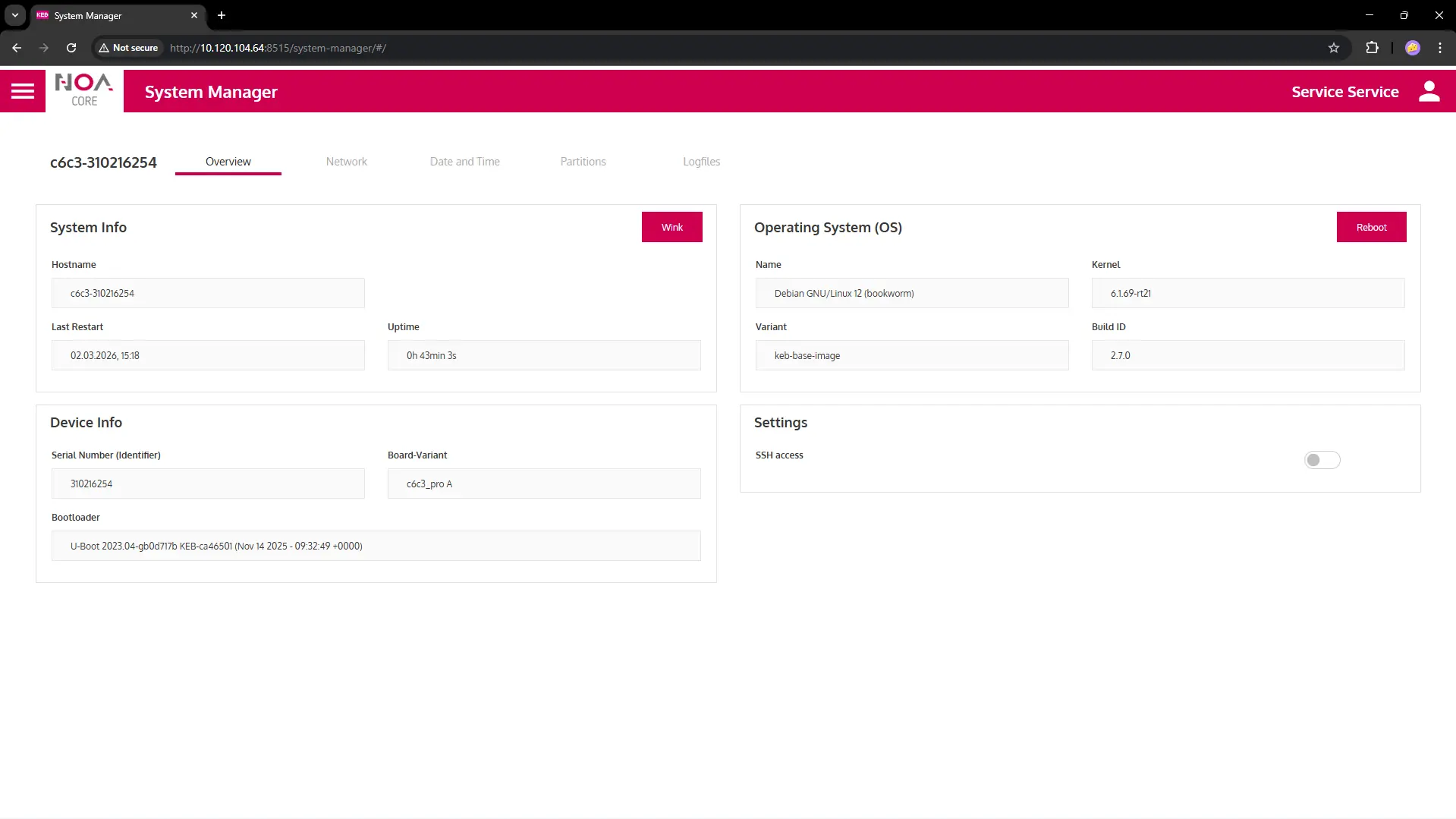
System Information Overview
Basic information about the device and Operation System (Linux)
Available functionality
- Wink: Makes an LED on the C6 COMPACT 3 blink for 180 seconds; this makes it easier to identify the device in a cabinet
- Reboot: Restarts the device without power-off; asks for confirmation
- SSH access: When this is set to ON, SSH is enabled on port 22
- This will be disabled every time the device reboots (a grace period of 5 minutes applies)
- To update the OS and Bootloader use OS Update
Network
- Change the Hostname of the device: click the pencil icon next to it
- Standard Ethernet connection is on port "X2"
- Info button: Read the explanation about "Reset", "Apply" and "Save"
- "Save" stores the changes to the network; they will become effective on the next reboots
- "Apply Now" stores the changes and applies them directly. This may lead you lose the connection to the device e.g. if the IP address changed.
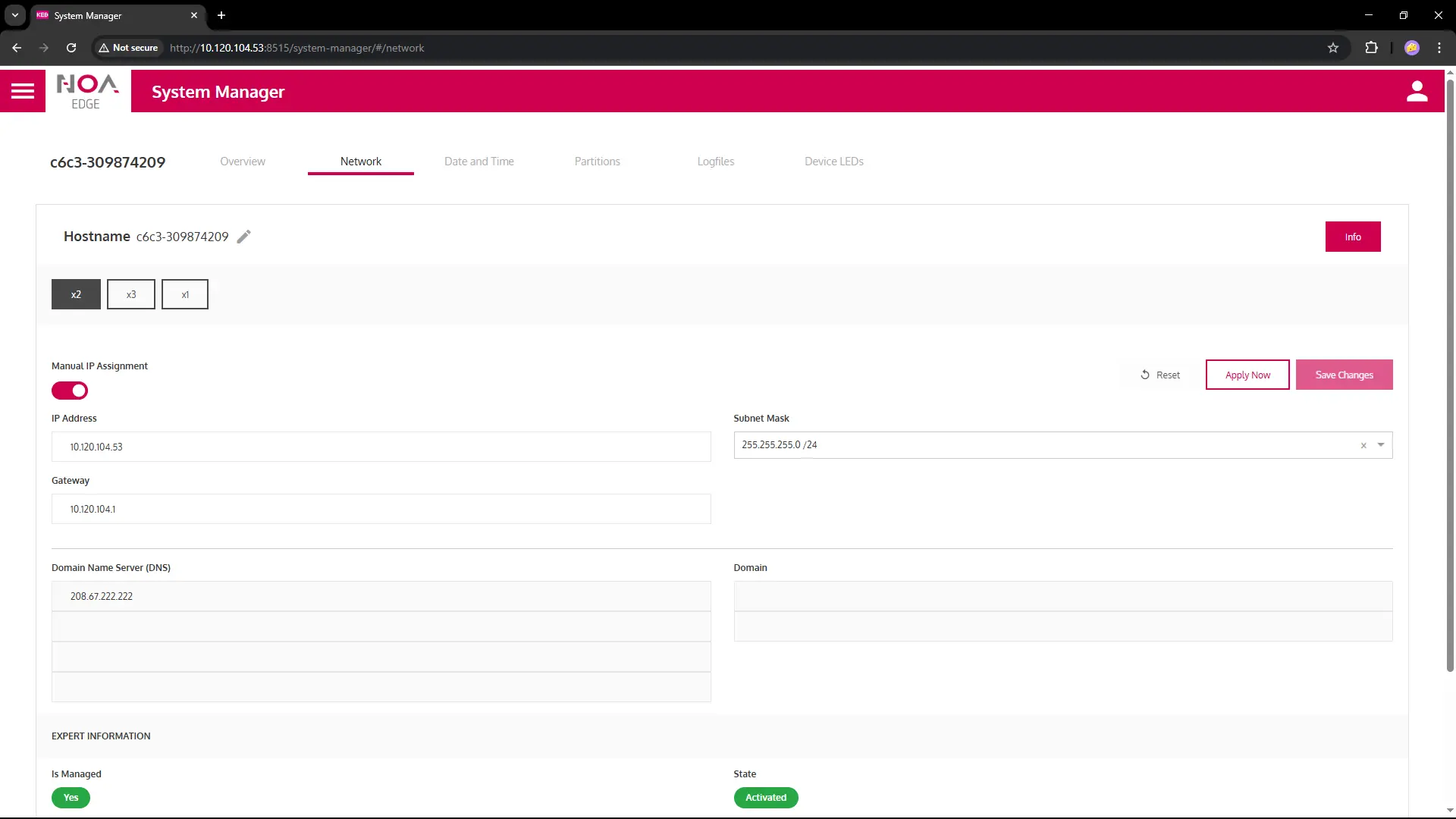
Manual IP Assignment
- When set to OFF (default)
- DHCP settings apply -- make sure there is a DHCP server available in the network
- All settings should be provided by the DHCP server automatically, including NTP server
- When set to ON
- Specify the network settings manually, i.e. IP address, Gateway, Subnet, DNS server and DNS search domain
- Make sure Date and Time are set correctly
Date and Time
info
It is crucial to get the Date and Time settings right for your overall system to work correctly.
- Timestamps may be wrong between different data sources
- Connection to the NOA Portal may not work
- Certificates depend on validity dates (from, to) and may be "expired" if the settings are wrong
- HELIO and Condtion Monitoring may not visualise/save data correctly
The current setting is shown on top, including the timezone.
- Set the timeszone from the drop-down list below (type your city to filter)
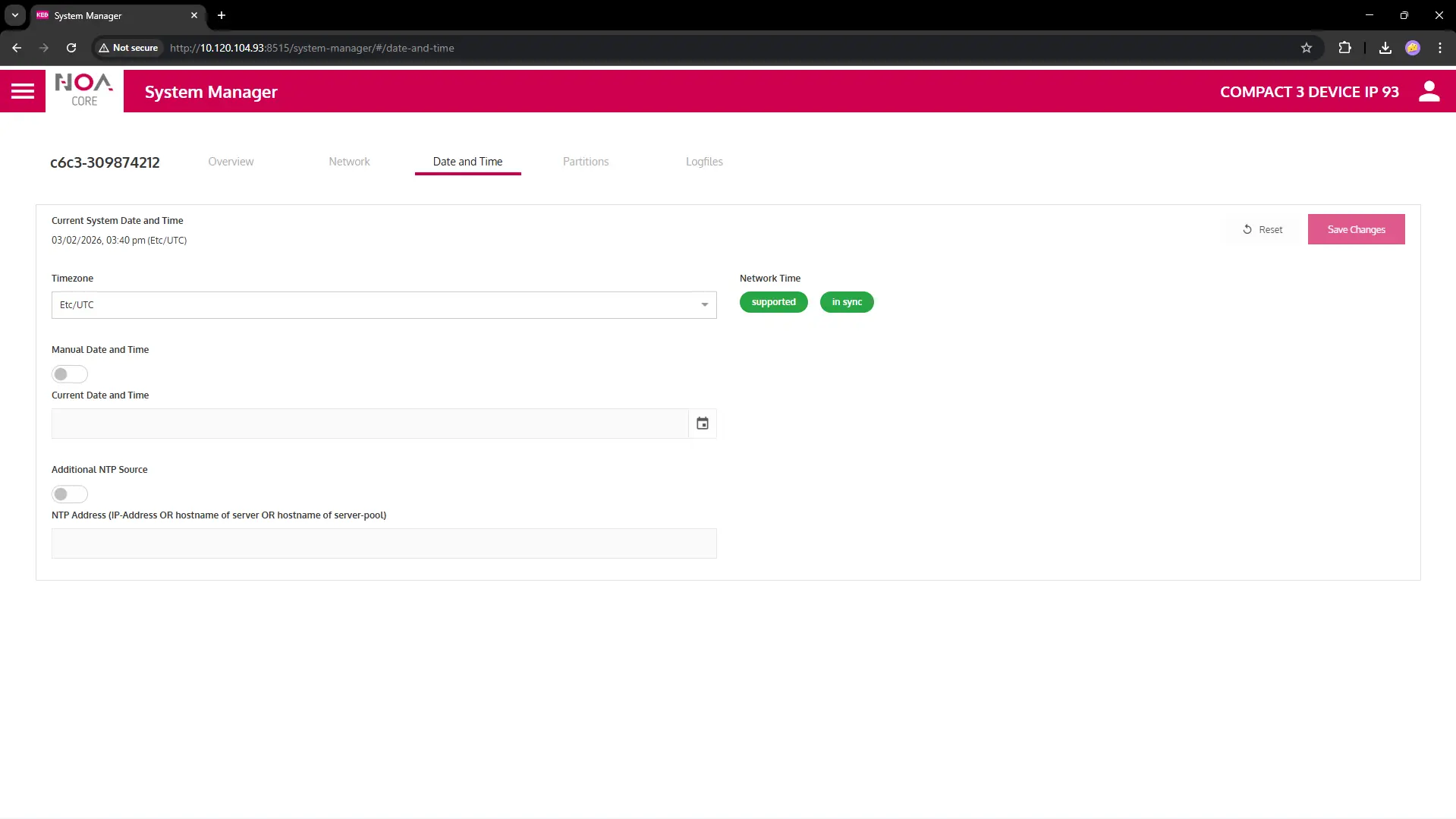
The status of the "Network Time" is indicated with two bubbles
- First bubble "supported": The device supports fetching date and time from an NTP server
- Secon bubble "in sync": Date and time are in sync with an NTP server
Manual Date and Time
- When set to OFF (default)
- Use an external NTP server to get the device's time (pre-set:
2.debian.pool.ntp.orgthis cannot be changed) - Internet access and DNS are needed to connect to the NTP server
- Use an external NTP server to get the device's time (pre-set:
- When set to ON
- Select a date and time from the field below -- NOTE: this is set by default to the current browser date and time
- Press "Save Changes" to apply your changes
Additional NTP Source
- When set to OFF (default)
- Only use the default NTP server
2.debian.pool.ntp.org
- Only use the default NTP server
- When set to ON
- Specify an additional NTP server of your choice
- Make sure DNS server is set when using a symbolic name, e.g.
pool.ntp.org - Set an IP address when accessing an NTP server directly, e.g. within the same network (you may enable an NTP server on an X1 panel)
Date and Time not persisted
On a C6 COMPACT 3 with 2 ports a time set manually will be lost on re-boot (consult the specification)
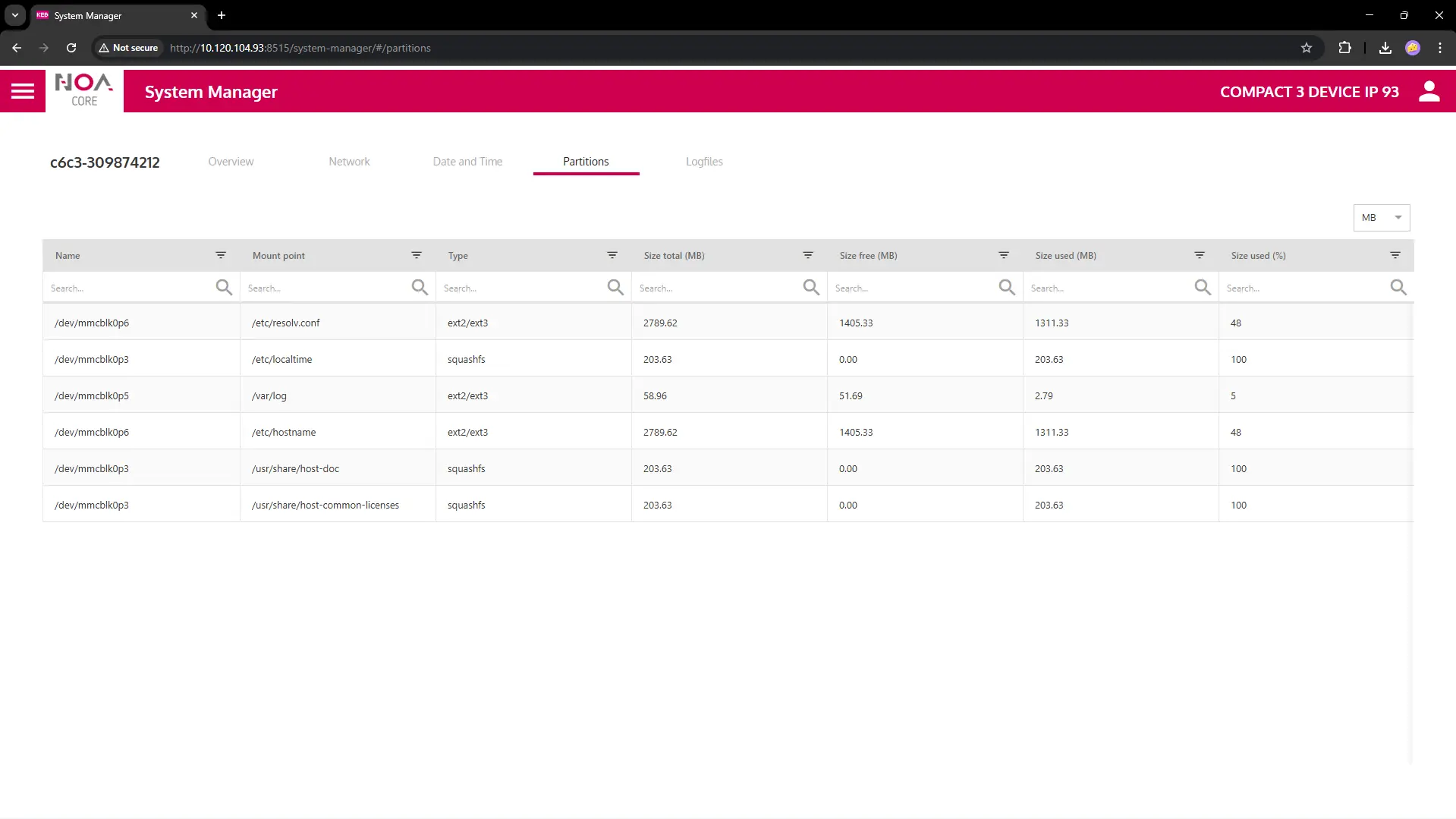
Partitions
Check for available space on the persistent storage (HDD); look for type other than squashfs.
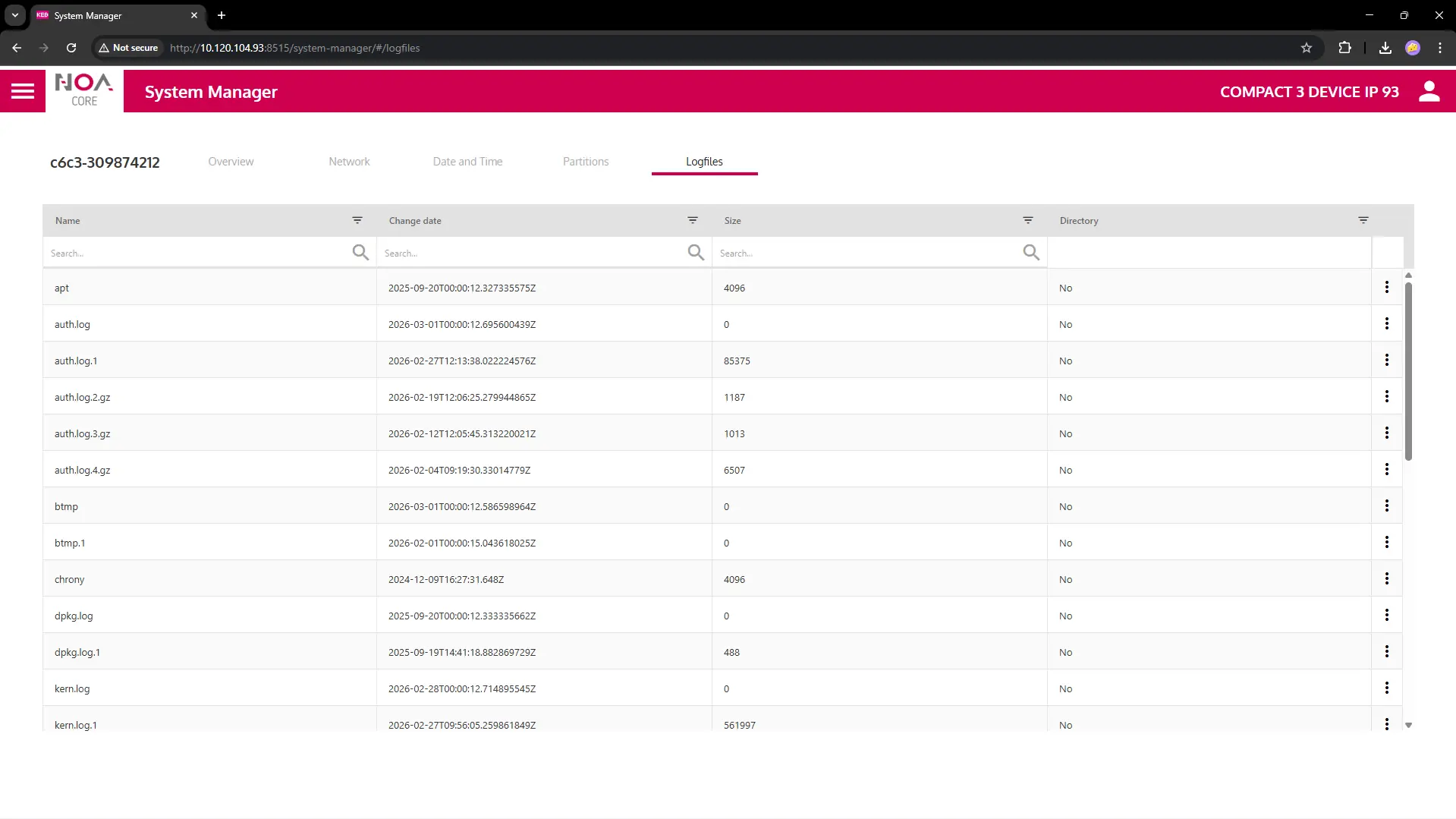
Logfiles
Download logfiles for further analyses, esp. to send to KEB support.