C6 X1 First Steps
Set Password
- Connect the panel (PoE: Power-over-Ethernet, no network access required)
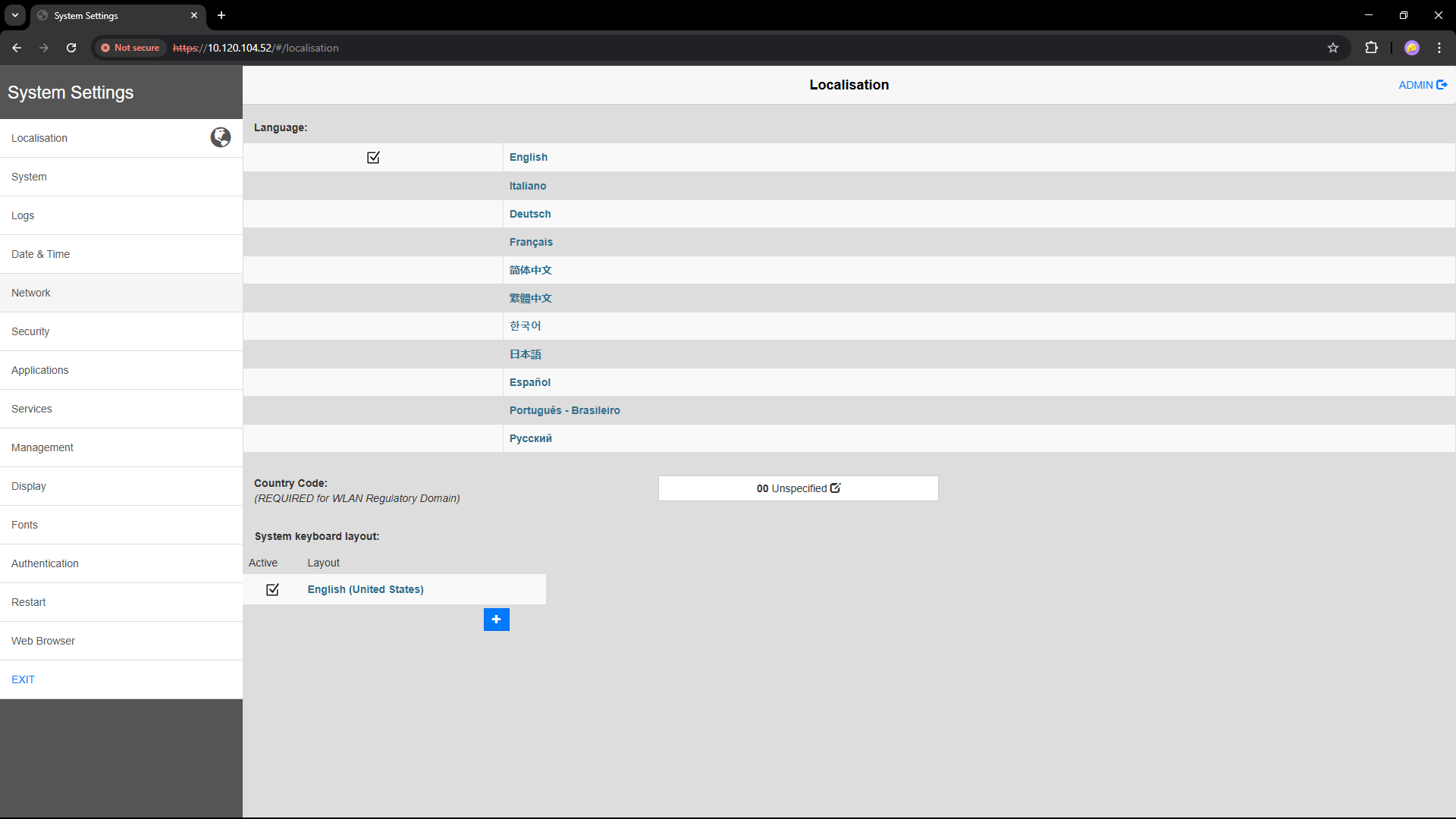
- The panel boots into the X1 settings ("System Settings"), operate via touchscreen
Access withadmin/admin
Password foradminmust be changed
Store passwords securely
Store passwords securely: The only way to recover is a complete factory reset.
- This will also remove the NOA installation
- To re-install contact NOA support
⟲ Panel restart -- happens automatically
Configure Network
- During panel boot, tap the display until a blue bar appears (TAP-TAP): wait until the intermediate screen appears.
The IP address<ip>;is shown at the bottom (DHCP, possibly an "autoip") - Change the IP address: In System Settings (
adminas above) under "Network"
⟲ Panel restart -- perform manually (e.g., in System Settings > Restart > Main OS)
Remote Access via Browser
Enter http://<ip-adress of panel>:port in the address bar, see table below
info
Ensure that the PC and the panel are in the same network.
In the browser, accept the unsecured connection (http without s) to access the page.
X1 System Settings
Setup for networking and browser (Chromium), see 📖 C6 X1 Product Page > Documentation
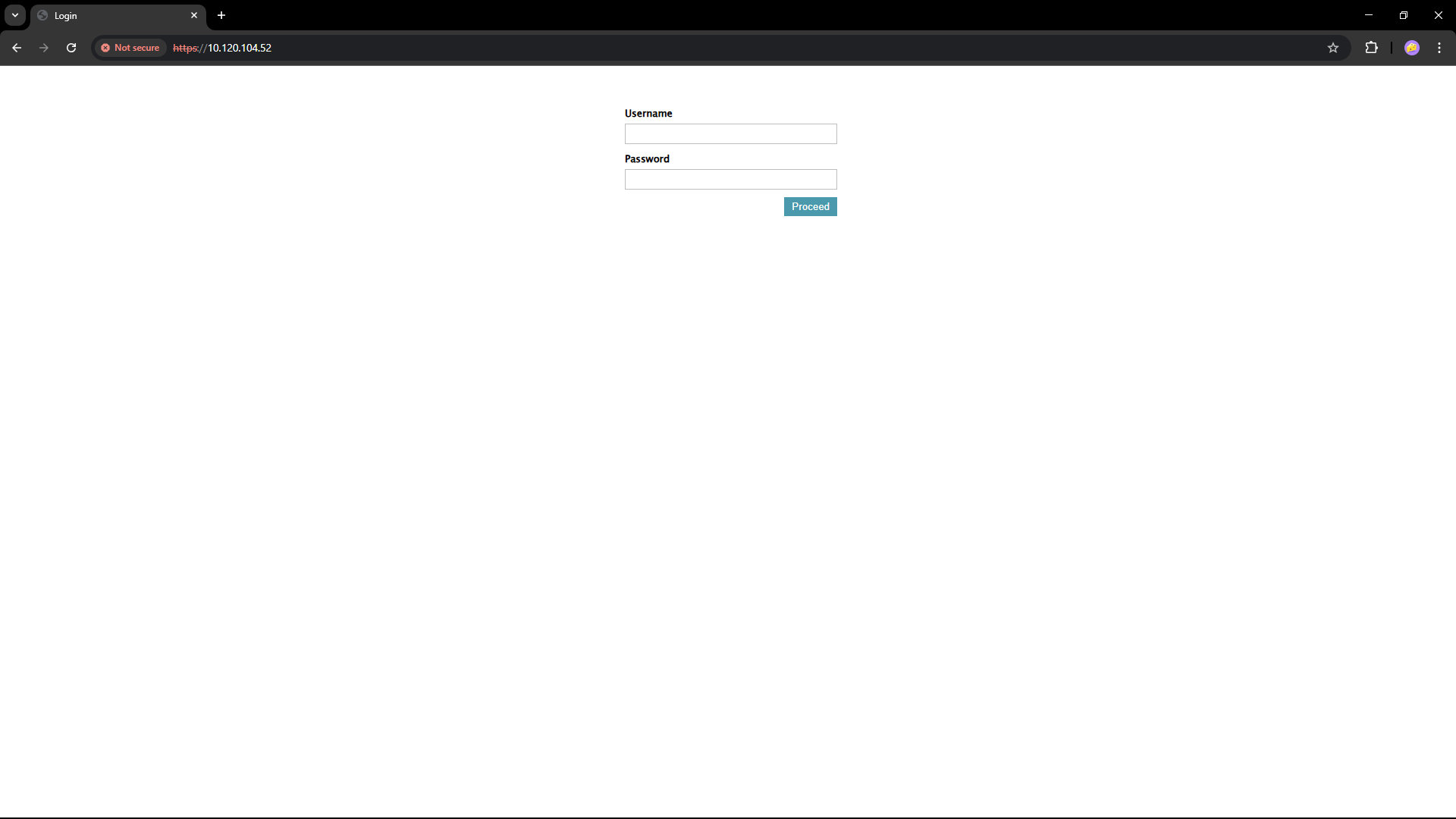
Access: <ip> (no port), admin/admin
- Login Screen
- Landing Page